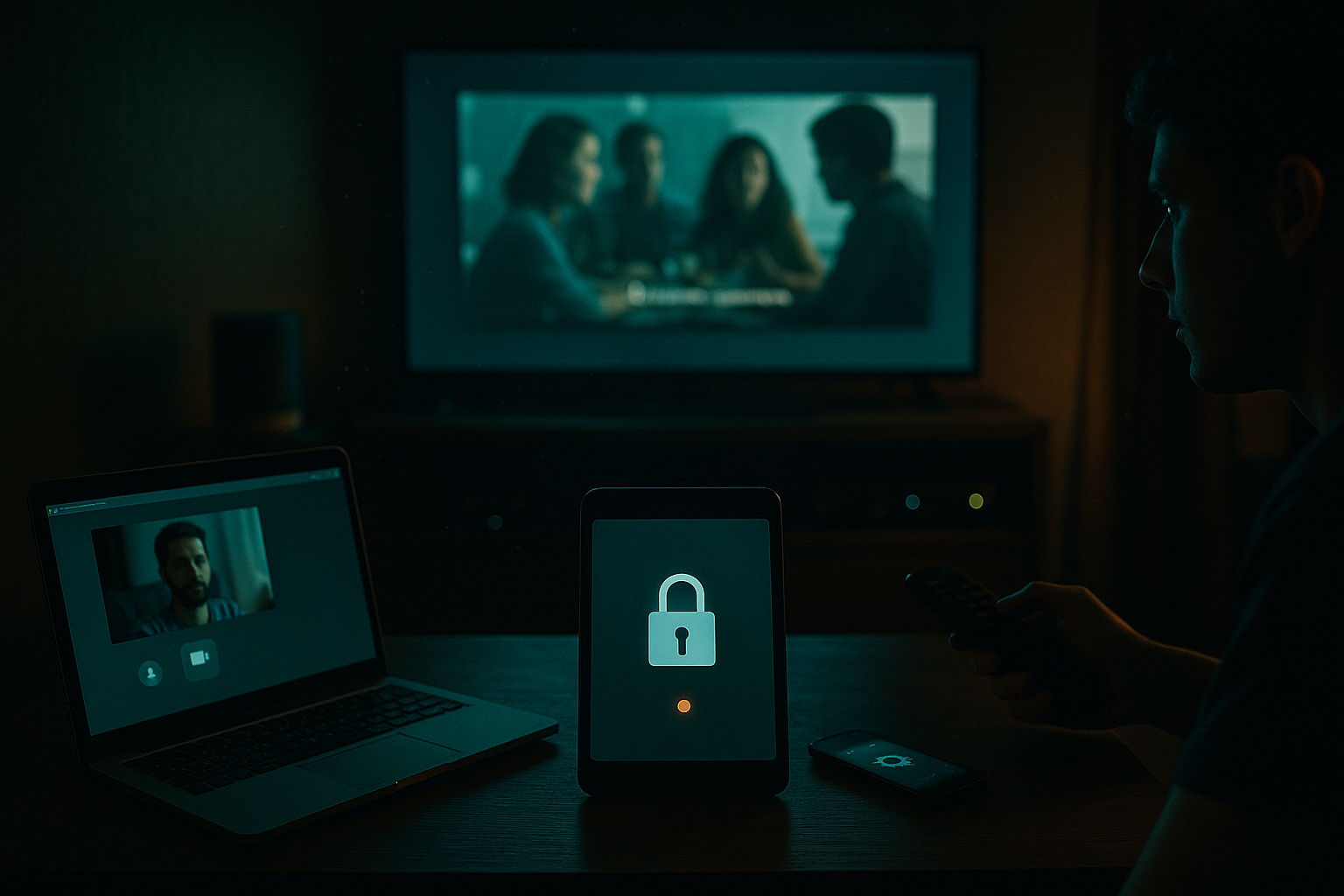
Screen sharing streaming looks simple until it matters. Someone wants help fixing an IPTV app, a family member wants to co-watch a legal stream, or a friend needs you to walk through a home media server setup. You hit share, the video stutters, the audio disappears, the wrong monitor is exposed, and everyone starts troubleshooting the tool instead of the session.
Teams think the problem is choosing the best screen sharing app. The real problem is designing a reliable session: what gets captured, who can see it, who can control it, how audio moves, what happens when the network drops, and where the legal boundary sits.
That changes the conversation. For cord cutters, torrent users working with lawful files, IPTV viewers, and media tech hobbyists, screen sharing streaming is less about a shiny feature and more about a small workflow architecture. The UI is only the visible part. The session state, permissions, bandwidth, privacy, and fallback plan are what decide whether it works.
This guide treats screen sharing streaming as an operator problem. Not a definition. Not a list of apps. A practical way to plan sessions that do not leak private tabs, break protected content rules, or collapse when Wi-Fi gets noisy.
Table of contents
- Screen sharing streaming is not just mirroring your display
- The legal and trust boundary comes first
- Pick the right session model before choosing tools
- The practical screen sharing streaming architecture
- Network conditions decide the experience
- Device and OS settings that break sessions
- Security and privacy controls you should require
- Implementation workflow for a reliable session
- What works, what fails, and how to compare approaches
- Where collaborative screen sharing fits into a media workflow
Screen sharing streaming is not just mirroring your display
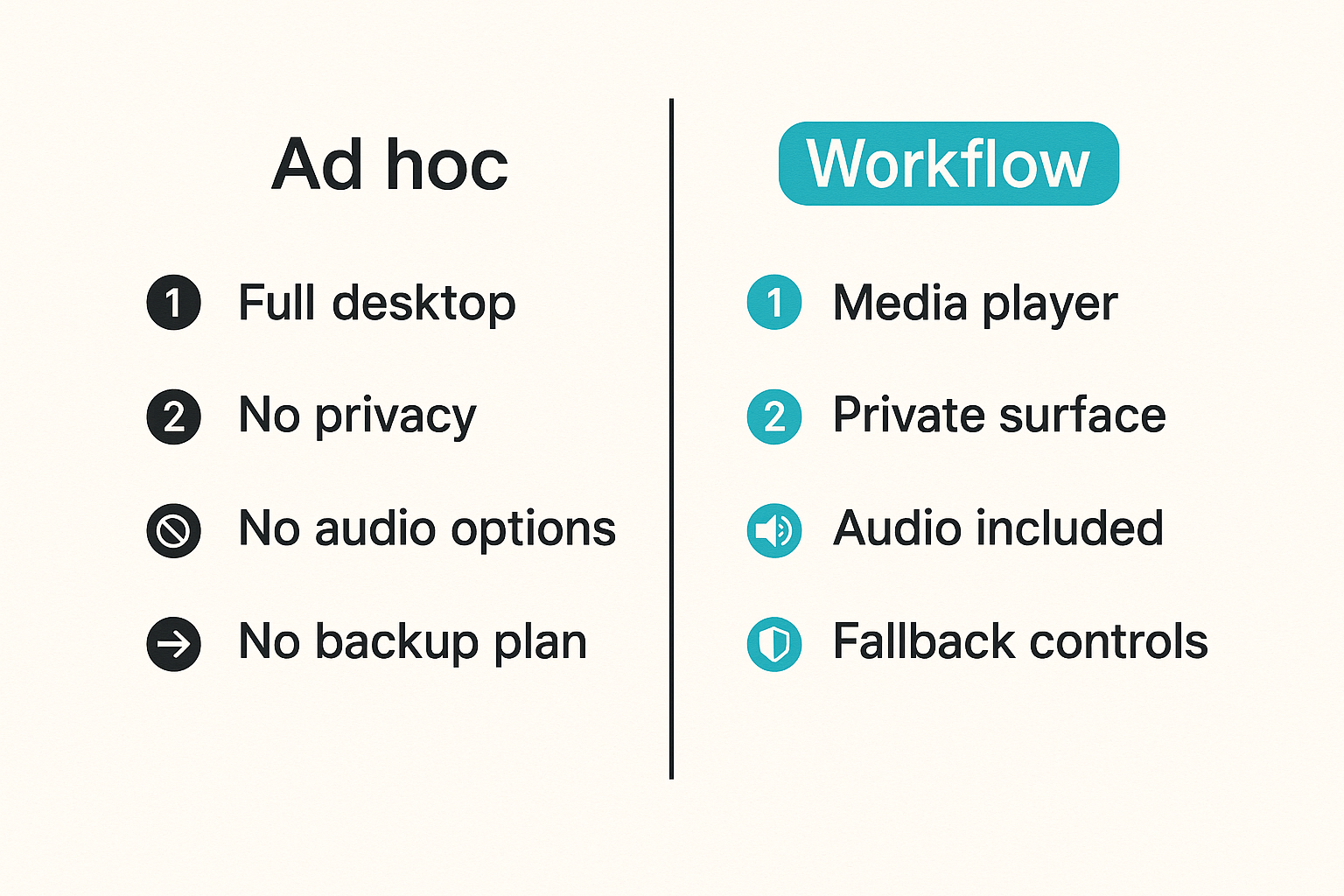
The mistake teams make is treating screen sharing as a button. Click share, pick a window, hope everyone can see and hear. That is fine for a quick status call. It is not enough when the session involves media playback, remote setup, family support, or multiple people trying to follow along.
A useful way to think about it is this: screen sharing streaming is a temporary broadcast system with permissions attached. It has an input, encoder, network path, viewer clients, audio route, and control policy. If any part is vague, the session becomes fragile.
The session has more moving parts than the app window
A reliable session answers six questions before anyone joins:
- What exactly is being shared: full screen, app window, browser tab, media player, or remote desktop?
- Is system audio included, mixed, or intentionally excluded?
- Can viewers only watch, or can someone request control?
- Is the content legally shareable in that context?
- What happens if the network path degrades?
- What private information might appear if notifications, tabs, or file names leak?
The practical question is not which app has the most features. It is which session design reduces surprises for the people involved.
Practical rule: Share the smallest useful surface. A tab is safer than a window, a window is safer than a full desktop, and view-only is safer than remote control.
Why cord cutters and media hobbyists care in 2026
Home media setups have become more complicated. People run streaming apps, legal IPTV subscriptions, personal media libraries, NAS boxes, mini PCs, smart TVs, browsers, casting devices, VPN clients, and sometimes remote access tools. When something breaks, the person who knows how to fix it is often not in the room.
Screen sharing streaming fills that gap. It can help someone configure an app, verify audio output, compare settings, or walk through a media server dashboard. It can also support legal co-viewing where each viewer has proper access and the screen share is used for coordination, not redistribution.
This guest post comes from the team at pairux.com, who work on practical collaborative screen sharing and remote-control workflows for people who need sessions to be fast, understandable, and safe.
The legal and trust boundary comes first
Screen sharing can easily cross boundaries that people do not notice in the moment. That is especially true around movies, live TV, sports, subscription services, IPTV apps, and downloaded media. The technical ability to display something to another person does not mean you have the right to rebroadcast it.
What breaks in practice is not always the stream. Sometimes it is the trust model. Someone shares a protected video, exposes account details, or gives remote control to a person who only needed to observe. You need a boundary before you need settings.
Share content you have the right to share
Keep the rule simple: use screen sharing for legal, authorized purposes. That can include troubleshooting a player, demonstrating settings, reviewing your own media files, walking through a public-domain library, or coordinating playback where everyone has their own legitimate access.
Be careful with DRM-protected services. Many platforms intentionally block capture, blank video output, mute audio, or degrade playback when screen capture is detected. That is not a bug to bypass. It is part of the rights and playback model.
If a streaming service blacks out the video during screen share, the correct response is not to hunt for a workaround. The correct response is to use the provider's approved watch feature, have each viewer log in independently, or switch to content that can be shared legally.
Separate viewing from remote control
View-only screen sharing and remote control are different risk categories. Watching someone open a settings panel is not the same as controlling their mouse, accessing their files, or typing into accounts.
Use remote control only when the task requires it. For example, it may be useful when helping a parent configure audio output on a mini PC. It is usually unnecessary for showing a group how to organize a media folder or compare player settings.
Practical rule: Remote control should be requested, time-limited, and reversible. If the helper does not need keyboard or mouse access, do not grant it.
Pick the right session model before choosing tools
The tool choice depends on the session model. Many people skip this step and end up using the same setup for every scenario. That creates either too much friction or too much exposure.
A good session model defines audience size, control rights, media sensitivity, latency tolerance, and support expectations. Once those are clear, picking software gets easier.
One-to-one support sessions
This is the classic remote help case. One person has a problem; another person helps solve it. Examples include fixing a buffering issue, checking DNS settings, changing audio output, updating a media app, or reviewing a router page.
Priorities:
- Clear video of the relevant settings
- Low enough latency for conversation
- Optional remote control
- Strong permission prompts
- Easy stop button
For one-to-one support, full desktop sharing may be acceptable if the user closes private apps and notifications first. Still, app-window sharing is usually better.
Small-group watch sessions
A small-group watch session is different. People may want to coordinate playback, react together, or compare legal streams. The goal is shared timing and conversation, not necessarily one person rebroadcasting protected content.
Priorities:
- Low audio delay between participants
- Chat or voice alongside video
- Clear policy on what is being shown
- No accidental account or message exposure
- Fallback to independent playback if capture is blocked
The mistake teams make is trying to force a screen share to behave like a broadcast platform. Most screen sharing tools are optimized for collaboration, not high-quality movie delivery.
Home media collaboration sessions
This model is common for hobbyists. You are not watching the whole film together. You are configuring, inspecting, comparing, or debugging a media workflow.
Examples:
- Checking transcoding settings
- Reviewing a torrent client's legal download folder structure
- Adjusting subtitle behavior
- Comparing playback quality on different devices
- Troubleshooting IPTV playlist loading for a lawful provider
Here, screen sharing streaming works best when you treat it like a technical walkthrough. Share dashboards, logs, settings, and short playback tests. Avoid exposing private libraries, account tokens, or copyrighted playback unnecessarily.
The practical screen sharing streaming architecture
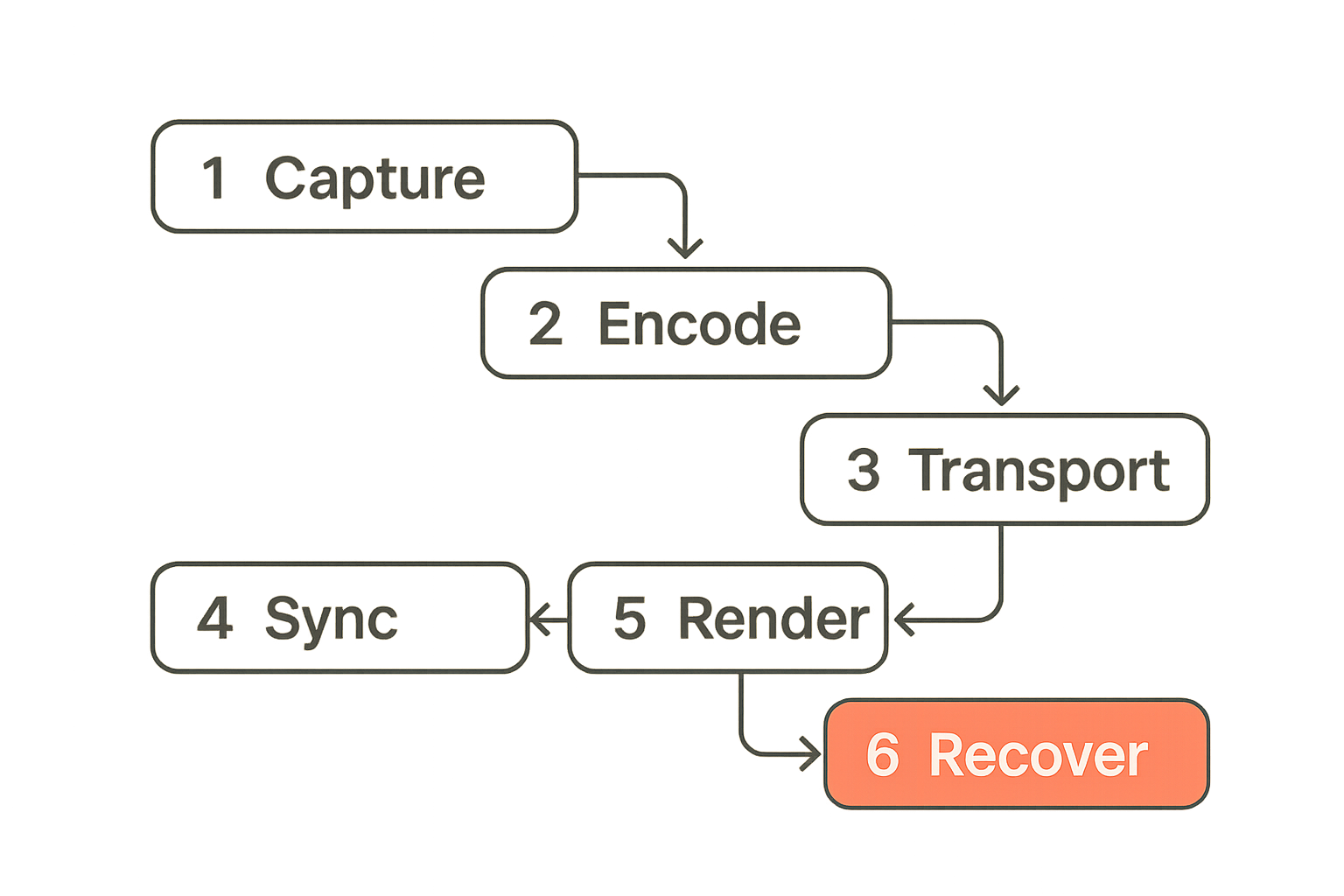
A session succeeds when the architecture is boring. Capture the right source, encode it efficiently, transport it over a stable path, render it clearly, and recover when something changes.
That may sound obvious. In practice, every bad screen share usually maps to one broken link in that chain.
Capture, encode, transport, render
The basic pipeline looks like this:
- Capture the selected screen, window, tab, or remote desktop.
- Capture or exclude audio from the system, browser, microphone, or app.
- Encode the visual stream into a network-friendly format.
- Send packets through a direct or relayed network path.
- Decode and render the stream on each viewer device.
- Sync voice, shared video, chat, and control events.
Each step adds constraints. A browser tab may capture audio cleanly, but a standalone app may not. A full desktop may capture everything, but it increases privacy risk. A direct connection may be fast, but a relay may be more reliable through strict networks.
A simple runbook helps:
session_goal: help configure home media app
share_surface: app_window
system_audio: off unless testing playback
remote_control: request only if needed
private_apps_closed: yes
notifications_paused: yes
fallback: switch to screenshots and voice
Audio is usually the hidden failure point
Video problems are visible. Audio problems waste more time. System audio, microphone audio, browser audio, HDMI output, Bluetooth devices, virtual mixers, and operating-system privacy controls can all fight each other.
For media-related sessions, decide which audio matters:
- If you are troubleshooting a setting, voice may be enough.
- If you are testing playback, short system-audio samples may be useful.
- If you are co-viewing legally, each viewer may get better results using their own authorized stream and keeping screen share for coordination.
Do not assume microphone and system audio are the same route. They are not.
Where latency actually comes from
Latency is not one thing. It comes from capture delay, encode time, network jitter, relay routing, decode buffering, display refresh, and voice-chat sync. If a session feels slow, reducing resolution may help, but it is not the only lever.
Try these in order:
- Share a window instead of the whole display.
- Lower resolution before lowering frame rate too aggressively.
- Turn off unnecessary video thumbnails from participants.
- Move closer to the router or use Ethernet.
- Disable heavy background downloads during the session.
Practical rule: Fix latency by reducing work across the whole pipeline, not by randomly toggling settings after everyone is already frustrated.
Network conditions decide the experience
Screen sharing streaming is network-sensitive in a way normal browsing is not. A web page can load slowly and still be fine. A live shared screen needs continuous delivery. Small packet loss, jitter, or Wi-Fi contention can make the session feel broken.
The practical question is whether the network path can support the session model. One helper viewing a settings window is easy. Five people trying to watch high-motion video through a screen share is much harder.
Bandwidth is a floor, not a guarantee
People often ask how much bandwidth screen sharing needs. The better answer is: enough upstream bandwidth, stable latency, and low packet loss for the quality you expect.
Upstream matters because the sharer is sending video out. Many home connections are asymmetric. Download speeds may look impressive while upload capacity is limited. If cloud backups, game downloads, torrent seeding, or security cameras are using upstream at the same time, your screen share can suffer.
For troubleshooting sessions, prioritize clarity over motion. For media demonstrations, keep tests short and lower expectations. Screen sharing is not a substitute for a properly licensed streaming distribution system.
NAT, Wi-Fi, and VPNs change the path
NAT, firewalls, VPN clients, and mesh Wi-Fi can change how a session routes. Sometimes the tool establishes a direct peer path. Sometimes it uses a relay. Sometimes a VPN adds overhead or changes location in a way that makes streaming services behave differently.
For media tech users, this matters because a session may involve multiple network-sensitive apps at once. A VPN may be needed for privacy in some lawful scenarios, but it can also add latency. A torrent client running in the background may be legitimate, but it can still consume upload bandwidth.
Before blaming the screen sharing tool, check the environment:
- Is the sharer on weak Wi-Fi?
- Is upload saturated?
- Is a VPN changing the route?
- Are multiple people streaming on the same connection?
- Is the media server transcoding heavily at the same time?
Device and OS settings that break sessions
Modern operating systems are more protective than they used to be. That is good. It also means screen sharing can fail in ways that look strange if you do not know where permissions live.
The mistake teams make is assuming a black screen is a network problem. Often it is a permission, DRM, hardware acceleration, or display-capture issue.
Browser permissions and display capture
Browsers now mediate screen capture carefully. Users may need to grant access to the entire screen, a window, or a tab. Some browsers handle tab audio better than full-screen audio. Some sites may block capture or blank protected video.
A clean browser-based session usually follows this pattern:
- Open only the tab or app needed for the session.
- Close unrelated tabs with private accounts.
- Start the call or screen sharing tool.
- Choose tab sharing when audio from that tab matters.
- Confirm viewers can see and hear before proceeding.
If permissions break, stop and restart the share. Do not stack multiple captures on top of each other. That usually creates more confusion.
Hardware acceleration, HDR, and multi-monitor setups
Hardware acceleration can improve playback locally while making capture harder. HDR can look washed out to viewers. Multi-monitor setups increase the chance of sharing the wrong thing.
Common fixes:
- Move the target app to a standard SDR display.
- Disable HDR temporarily if viewers report strange colors.
- Share a single application window when possible.
- Avoid dragging private windows across the shared screen.
- If video capture is black, test a non-protected sample file or settings screen.
For home theater PCs, mini PCs, and living-room setups, also check scaling. A 4K display at 150 percent scaling can make small settings readable locally but blurry over a compressed stream.
Security and privacy controls you should require
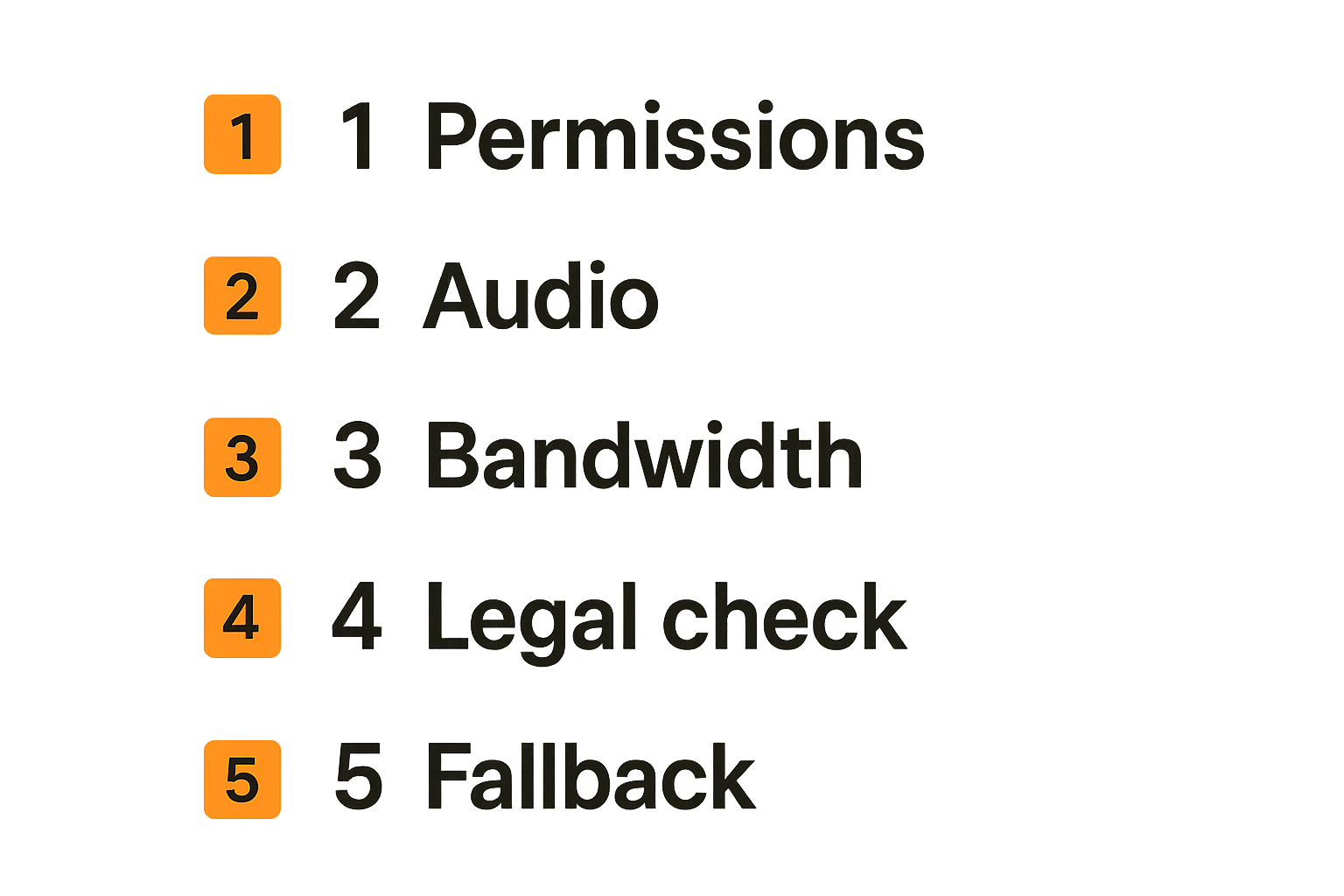
Screen sharing turns a private device into a temporary shared environment. Treat it that way. The best sessions are not just smooth; they are limited, intentional, and easy to stop.
Security does not need to be heavy. It needs to be explicit.
Least privilege for every session
Least privilege means giving the session only what it needs. If the other person only needs to see your media app settings, do not share your entire desktop. If they only need to explain a change, do not grant remote control. If they only need a screenshot, do not start a live session at all.
Before sharing, do a quick cleanup:
- Pause notifications.
- Close password managers and private chats.
- Hide desktop folders with sensitive names.
- Use a separate browser profile for media tools.
- Keep account pages and billing screens out of view.
This is especially important for IPTV and streaming accounts. Login screens, subscription details, playlist URLs, tokens, and email addresses should not be casually exposed.
Recording, logs, and accidental exposure
Recording changes the risk. A live mistake disappears when the session ends. A recorded mistake may persist in cloud storage, chat history, or local downloads.
Set expectations clearly. Is recording disabled? If recording is needed, who stores it, who can access it, and when is it deleted? For casual support sessions, recording is usually unnecessary.
Accidental exposure is more common than malicious behavior. A notification appears. A download folder is visible. A browser autofill menu opens. The fix is not paranoia. The fix is reducing the shared surface and using a session checklist.
Practical rule: If you would not post it in a group chat, do not leave it visible during a screen share.
Implementation workflow for a reliable session
Good sessions are repeatable. If you regularly help friends or family with media setups, create a simple workflow. The point is not bureaucracy. The point is to stop solving the same avoidable problems every time.
Here is a practical sequence that works for most home media and cord-cutting support scenarios.
Preflight checks
Run these before the real work begins:
- Define the goal in one sentence. Example: fix subtitle sync in a media player.
- Choose the smallest share surface. Prefer tab or app window over full screen.
- Decide whether system audio is needed.
- Decide whether remote control is allowed.
- Close private apps and pause notifications.
- Check upload-heavy background tasks.
- Confirm the content being shown is legal to share.
- Start with a 30-second visibility and audio test.
That last step saves time. It is better to discover audio is missing before you begin explaining the fix.
Live-session operating rules
Once the session starts, keep it disciplined:
- Narrate before switching windows.
- Ask before opening account or billing screens.
- Stop sharing before entering passwords or tokens.
- Use chat for links, paths, and setting names.
- Confirm after each major change.
- Keep playback tests short.
For remote control, use a clear handoff: request control, perform the action, explain what changed, then release control. Do not stay in control while discussing unrelated topics.
Recovery plan when things fail
Every setup needs a fallback. Screen sharing may fail because of permissions, DRM, weak upload, device load, or plain user confusion.
Use this recovery ladder:
- Stop and restart sharing the same surface.
- Switch from full screen to app window, or app window to browser tab.
- Turn system audio off and continue with voice.
- Reduce resolution or close high-bandwidth background tasks.
- Use screenshots and step-by-step chat instructions.
- Schedule a better session from a wired connection or different device.
The practical question is not whether failure happens. It will. The question is whether the group has a non-chaotic next step.
What works, what fails, and how to compare approaches
There is no single best screen sharing streaming setup for every media scenario. The right choice depends on whether you are troubleshooting, co-viewing legally, teaching, or remotely controlling a device.
A comparison makes the trade-offs clearer.
Comparison table for common approaches
| Approach | What works | What fails | Best fit |
|---|---|---|---|
| Full desktop share | Simple, familiar, shows everything | Highest privacy risk, wrong monitor exposure, noisy notifications | Quick support with trusted people |
| App window share | Lower exposure, good for settings | Audio may not capture cleanly, window switching can break context | Media app troubleshooting |
| Browser tab share | Often best for tab audio, clean scope | Limited to browser content, protected video may be blocked | Web dashboards, legal web playback checks |
| Remote desktop control | Powerful for setup and fixes | Higher trust requirement, risky if left active | Helping family configure devices |
| Independent playback plus chat | Best legal and quality model for paid streams | Requires everyone to have access and sync manually | Watch coordination without rebroadcasting |
The pattern is straightforward: the more powerful the session, the more permission and trust it needs.
Failure modes that show up in practice
What breaks in practice is rarely mysterious. It usually falls into a few buckets:
- Black video because the content blocks capture.
- No audio because the wrong source is shared.
- Echo because system audio and microphones are both feeding back.
- Lag because upload is saturated.
- Blurry text because resolution, scaling, and compression fight each other.
- Privacy leak because full desktop sharing exposes notifications or tabs.
- Control confusion because two people are trying to operate the same mouse.
What works is boring: smaller share surfaces, explicit permissions, short tests, legal content boundaries, and a fallback path.
What fails is improvisation under pressure. If everyone starts changing settings at once, you lose track of cause and effect.
Where collaborative screen sharing fits into a media workflow
Screen sharing is not the whole media system. It is a collaboration layer around it. That distinction matters for a site like bittorrented.com, where readers often care about streaming tools, home media organization, legal torrent use, IPTV setups, and privacy-aware workflows.
Use screen sharing to help people understand and operate their own systems. Do not use it as a workaround for licensing, distribution, or platform rules.
For remote help and setup
Screen sharing is excellent for setup help. It lets an experienced person see what is happening instead of guessing from vague descriptions. This is useful for router settings, app preferences, subtitle configuration, file organization, audio devices, and playback troubleshooting.
For recurring family support, create a dedicated media support profile or browser profile. Keep sensitive accounts separate. That small habit reduces accidental exposure and makes sessions faster.
For legal co-viewing and group coordination
For co-viewing, the cleanest model is often not rebroadcasting a screen. It is coordinating independent playback: everyone uses their own authorized access, while screen sharing or chat helps align timing, settings, or troubleshooting.
Screen sharing streaming still has a role. It can show where a setting lives, help compare quality options, or walk someone through a legal source. But if the goal is to distribute a protected stream to people who do not have access, stop. That is a rights problem, not a technical challenge.
The closing point is simple: screen sharing streaming works best when it is scoped, lawful, and designed as a workflow. Treat it that way and it becomes a useful part of the home media toolkit instead of another source of lag, leaks, and confusion.
Try bittorrented.com
For practical, privacy-aware guidance on streaming services, torrents, IPTV, and home media tools, Try bittorrented.com.